AI
Figma workflows
Use Figma MCP to move between Figma and code so designers and developers can work from shared SGDS context.
Use Figma MCP when you need AI to work with real Figma context, selected frames, or live UI captures. Use Figma Make when you want to explore interface ideas from prompts before refining them with SGDS guidance.
MCP stands for Model Context Protocol. It is a standard way for an AI tool to connect to another tool and use live information from it.
Figma MCP gives AI tools real design context from Figma, including selected frames, components, variables, spacing, and tokens. This helps them produce SGDS-aligned output instead of guessing from screenshots or written descriptions.
Figma MCP supports design-to-code workflows, canvas writing, live UI capture for supported clients, FigJam diagrams, Make resources, and Code Connect context. Pair it with SGDS skills so the AI can use both Figma context and SGDS implementation guidance.
Before Figma MCP
Designers usually handed over screens, notes, and links, while developers or AI tools worked from screenshots and manual explanations. That made it easy for design intent to get lost.
When Figma MCP first arrived
With Figma MCP, AI can access design context directly from selected Figma frames instead of guessing from images. With a design system, it can better map components, variables, and layout context to produce more accurate outputs.
What it can do now
AI can work with richer design context, move between code and Figma, and write directly to the Figma canvas when the MCP client supports it.
Before you start: set up Figma MCP for SGDS workflows
To turn Figma designs into SGDS-aligned code, set up the Figma MCP server, SGDS package, and SGDS skills first.
Install and configure your AI agent
Choose a supported MCP client, such as Codex, Claude Code, Cursor, or VS Code. Follow your client documentation to install and sign in.
Set up Figma MCP
Follow Figma's remote MCP server setup guide for your client. Figma recommends the remote server because it connects to Figma files without requiring the Figma desktop app.
Install SGDS web component package
Run the following command if the SGDS web component package is not installed:
| npm i @govtechsg/sgds-web-component |
Install SGDS agent skills
Run the following command to install the skills:
| npx skills add govtechsg/sgds-web-component |
Select all SGDS skills from the list. This pulls the latest SGDS guidance into your local .agents/ directory, where compatible AI tools can read it while generating or reviewing SGDS code.
Working between Figma and code
Use the workflow that matches your starting point.
Start here if you already have screens in Figma and want the AI to help turn them into SGDS-aligned code or implementation guidance.

Go to your Figma screen
Choose the frame or layer you want the AI to work from. If you use the remote MCP server, copy the Figma link. If you use the desktop MCP server, make sure the Figma desktop app is running.
Give your AI the Figma context
Give the AI the right Figma context. The method depends on your MCP setup:
- Desktop MCP: select the frame or layer directly in Figma, or open Dev Mode and copy the relevant Figma link.
- Remote MCP: share the relevant Figma link with your AI client. The client can extract the node ID from the link and request design context from Figma MCP.
Ask for SGDS-aligned help
Be explicit that you want SGDS components and patterns where possible. Ask the AI to flag anything that does not have a direct SGDS match.
AI generates the code
The agent reads the selected Figma frame through MCP, then uses the installed SGDS skills to choose suitable components, utilities, and layout patterns. Review the result before using it in production.
Start here if you want to capture a running page or section in Figma for further design refinement.

Decide which page or section you want to send to Figma
Choose the live page, flow, or section you want to bring into Figma. Tell your AI exactly what should be captured, so it can create editable Figma layers from the live UI.
Tell your AI where you want the screen or objects to be sent to
Tell the AI where the captured screen or objects should go in Figma. If you already know the destination, include the relevant Figma link in your prompt. Here are a few ways you can get it:
- To get a Figma page link: click the Share button in the top-right corner and select Copy link.
- To get a frame link: right-click a frame and choose Copy/Paste as → Copy link to selection.
Prompt your AI to send the page or section to Figma
Be explicit about what you want sent and where it should go. Ask the AI to use SGDS components, tokens, and layout rules where possible, and to flag anything that does not have a direct SGDS match.
Make changes on your Figma
Once the screen is in Figma, tidy the file for future design work. Use clear layer names, keep the hierarchy clean, and replace temporary UI with SGDS components where possible. When you are ready to turn it back into code, refer to the Figma to code workflow.
- Keep frames and layers clean.
- Be specific about the section or component.
- Ask the AI to use Code Connect mappings where available.
- See Prompt tips for more examples.
What is Figma Code Connect?
Code Connect links Figma components to their real code implementations. Instead of treating a selected component as a generic visual object, Figma can show the component's production code, props, variants, and implementation details in Dev Mode. Figma MCP can also use those connections to give AI agents more accurate code context.
SGDS components are already set up with Code Connect. This means that when designers use components from the SGDS Figma library correctly, developers and AI agents can map those designs back to the right SGDS web components and implementation patterns.
Not code connected
Code connected
For the best handoff, designers should build with the official SGDS component library and use its components as intended. When the design uses SGDS components properly and those components are Code Connected, developers and AI agents can implement the matching SGDS web components with more confidence.
What is Figma Make?
Figma Make is an AI tool for turning prompts, designs, and product context into functional prototypes. You can start from an existing design, prompt changes, edit the output, and bring the result back into Figma Design as editable layers.
How to use the SGDS Make Kit
Use the kit when you want Figma Make to generate prototypes with SGDS components, styles, tokens, and guidance from the start.
Open Figma Make
Start a new Figma Make session or open an existing Make file.
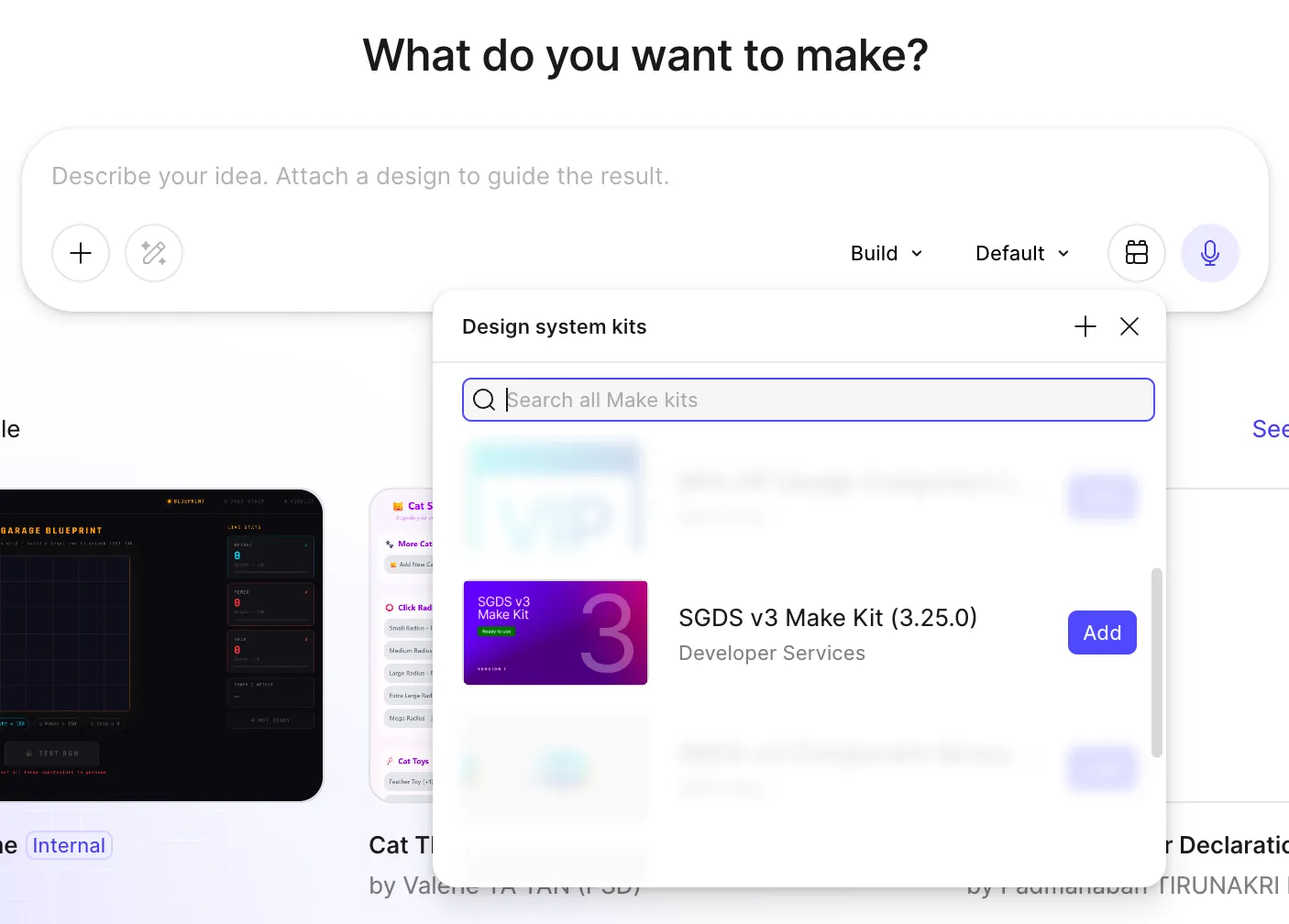
Select a Make kit
Click the Select a Make kit icon beside the microphone icon.
Add the SGDS v3 Make Kit
Choose SGDS v3 Make Kit from the available kits.
Start prompting
Prompt as usual. The kit gives Figma Make SGDS context while it generates your prototype.
What to expect
Using the SGDS Make Kit helps Figma Make:
- Generate interfaces that align more closely with SGDS components, styles, and design guidance.
- Produce outputs that are closer to government UI patterns.
- Reduce manual clean-up after generation.
- Create a stronger starting point for further refinement.